How to bookmark and return to paversealguide.com articles
Last updated: November 15, 2026
Quick Answer: Learning how to bookmark and return to paversealguide.com articles takes under 3 seconds: press Ctrl+D (Windows) or Cmd+D (Mac) while viewing any guide to store its direct URL on your bookmark bar for 1-click retrieval.
Key Takeaways
- Bookmark the article URL in 1 click for immediate future retrieval without searching again.
- Browser bookmarks offer a direct return path, while browser history functions as a backup.
- Organize saved guides with descriptive folder names and limit the bookmark bar to active projects.
- Store articles immediately upon opening and verify the saved link to avoid broken redirects.
Learning how to bookmark and return to paversealguide.com articles allows you to reference technical sealing instructions within 1 click instead of repeating web searches. A fast, practical method is a browser bookmark or bookmark bar shortcut. Specifically, keyboard shortcuts like Ctrl+D save a page in under 2 seconds.
If you open several paversealguide.com guides during a project, it helps to treat bookmarking as part of the reading workflow rather than an afterthought. The goal is not just saving a page once, but making sure you can return to the exact article later without hunting through search results, browser tabs, or half-remembered page titles.
Why bookmarking beats searching again
Searching for the same article repeatedly wastes time and can lead to the wrong version of a guide. A bookmark preserves the exact page you were using, which matters when you need the same steps, wording, or reference images.
This is especially useful if you are:
- Following a multi-step guide over several days
- Comparing different article sections side by side
- Reopening a tutorial after closing your browser
- Using a shared computer where tabs may not stay open
Bookmarks also reduce the chance of landing on a similar-looking article or a search result page with extra noise. When you click a bookmark, you go straight to the saved URL.
The fastest way to save a paversealguide.com article
On most desktop browsers, the quickest method is the bookmark shortcut.
- Windows and Linux: press Ctrl+D
- Mac: press Cmd+D
A bookmark dialog appears, and you can usually accept the default name or edit it immediately. If you want to make later retrieval even easier, give the bookmark a short but descriptive label, such as the article topic or project name.
For example:
Paverseal Guide - seal installationPaverseal Guide - article return stepsPaverseal Guide - troubleshooting notes
Then choose a folder or bookmark bar location and save it. If the page is something you will use repeatedly, placing it on the bookmark bar is usually the fastest option.
What to do right after bookmarking
After saving the page, take a moment to verify it.
- Close the current tab or open a new tab.
- Click the bookmark you just created.
- Confirm the same article opens.
- Check that the URL looks correct and not like a temporary redirect or search page.
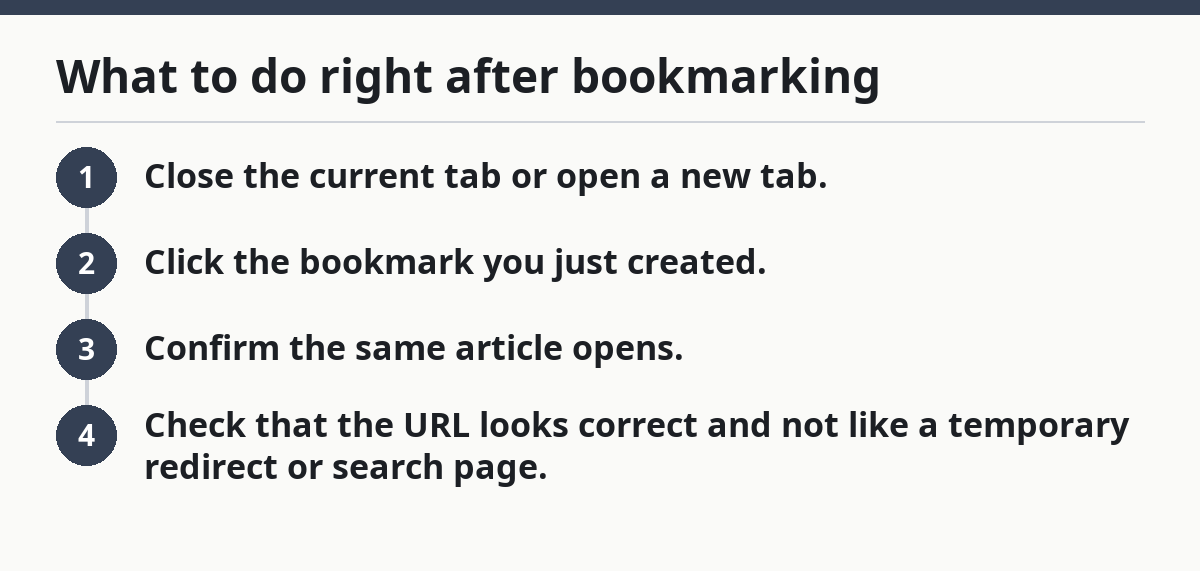
This quick check prevents a common problem: users think they saved the article, but later discover the bookmark points to an intermediate page or an outdated route.
Using the bookmark bar for one-click access
The bookmark bar is the simplest way to return to frequently used paversealguide.com articles. It keeps your most important pages visible below the address bar, so you do not need to open a menu or search through folders.
To keep it effective:
- Reserve the bookmark bar for high-use articles only
- Rename long page titles so they are readable at a glance
- Place related guides next to each other
- Remove stale links you no longer need
A cluttered bookmark bar becomes hard to scan, which defeats the purpose. The best setup is a small set of active references you can identify instantly.
If you use many articles, keep only the current project or topic on the bar and store older links in folders. That way, the bar stays fast while your archive remains available.
Organizing saved articles into folders
Folders help when you have more than a handful of bookmarked pages. Instead of leaving everything in one long list, group guides by project, topic, or workflow.
Good folder names are short and specific:
Current ProjectPaverseal GuidesReferenceTroubleshootingTo Review
If your work involves several related articles, you can also make subfolders. For example:
Paverseal GuidesSetupMaintenanceRepairs
This structure makes it easier to find the right guide later, especially if you are working across multiple browser sessions or devices.
Naming tips that make return visits easier
The bookmark name matters almost as much as the folder. Long or vague names can slow you down when you are scanning a list.
Use names that answer two questions:
- What is this article about?
- Why did I save it?
Examples of useful names:
Install guide - torque sequenceSealing steps - referenceChecklist - return to article
Examples of less useful names:
ArticlePage 1Read later
If the browser title is already clear, you may only need to shorten it slightly. The aim is fast recognition, not perfection.
Returning through browser history
Bookmarks are the best long-term method, but browser history can help when you just visited the article and forgot to save it.
To use history effectively:
- Open the history list from your browser menu or shortcut
- Search for part of the site name or article title
- Click the most recent matching entry
History is useful as a backup, especially if you closed a tab by mistake. However, it is less reliable than a bookmark because it depends on how long ago you visited the page and whether your browser settings clear history automatically.
If you know you will need the page again later, bookmark it immediately instead of relying on history.
Returning with open tabs and tab groups
If you are working through several paversealguide.com articles at once, tab management can make return visits even easier.
A few practical habits help:
- Pin an important tab if you need constant access
- Use tab groups to separate topics
- Keep one tab group per task or project
- Rename tab groups if your browser supports it
Pinned tabs are especially helpful for articles you reference many times in one session. They stay in place and are harder to close accidentally. Tab groups are better when you need to compare several guides and want a clean visual structure.
Still, tab groups are temporary. If a page matters tomorrow, bookmark it.
How to handle article updates and changed URLs
Sometimes a page title stays the same while the URL changes, or the site may update the article layout. If that happens, a saved bookmark might still work, but it may lead to a redirected page or a newer version of the guide.
To reduce surprises:
- Bookmark the final article URL after the page finishes loading
- Avoid saving from search previews or shared snippets
- Revisit important bookmarks occasionally to confirm they still point to the right page
- Update the bookmark if the site moves the article
If you notice a bookmark opens a different page than expected, replace it with the current URL. This is especially important for guides you depend on for repeat work.
Bookmarking on mobile devices
On phones and tablets, the process is a little different, but the principle is the same: save the article now so you can open it later without searching.
Most mobile browsers include a share or menu button with an option like:
- Add bookmark
- Save to bookmarks
- Add to reading list
- Save page
For mobile use, it helps to:
- Save the article in a visible folder
- Give it a short title
- Use the browser sync feature if you also read on desktop
If your browser offers a reading list, that can work for temporary saving. But if you want dependable return access, a real bookmark is better because it stays available across sessions and is easier to organize.
Syncing bookmarks across devices
If you move between a desktop, laptop, and phone, browser sync can make returning to paversealguide.com articles much smoother. Once sync is enabled, a bookmark saved on one device appears on the others, often within a minute or two.
This is useful when you:
- Start reading on a phone and finish on a computer
- Need the same article while traveling
- Want the same folder structure on multiple devices
Check that sync is turned on for bookmarks specifically, not just passwords or history. If you use a work or shared browser profile, make sure your bookmarks are stored in the profile you actually use every day.
Keeping your bookmark list clean
A huge bookmark collection is hard to use. The more pages you save, the more important it becomes to review and prune the list.
A simple maintenance routine works well:
- Delete bookmarks you no longer need
- Merge duplicate entries
- Move rarely used pages into folders
- Refresh important links if the site has updated them
This takes only a few minutes but pays off every time you look for an article. A tidy bookmark list is faster to scan and less likely to contain broken or outdated pages.
Troubleshooting if a bookmark does not open correctly
If a saved paversealguide.com article does not load the way you expect, the problem is usually one of a few common issues.
The bookmark opens the wrong page
This often happens when the page was saved before it fully loaded, or when the site redirected from an old address.
Fix:
- Open the article manually
- Wait until the page finishes loading
- Delete the old bookmark
- Save the current page again
The page says it cannot be found
The article may have moved or been removed.
Fix:
- Search the site for the article title or topic
- Check whether there is a newer version
- Update the bookmark if a replacement page exists
The bookmark opens a login or intermediary page
Some sites use redirect pages or session-dependent links.
Fix:
- Save the final public URL instead of the temporary page
- If needed, open the article in a fresh tab and bookmark that address
The page opens, but looks different than before
The content may have been updated.
Fix:
- Compare the article title and URL
- Confirm whether the new version still matches your needs
- Replace the bookmark if necessary
Best practices for fast return access
A few small habits make bookmark use much more efficient over time.
- Bookmark the article immediately after opening it
- Use one consistent folder structure
- Keep names short and meaningful
- Verify the bookmark works before closing the tab
- Use browser sync if you read on more than one device
- Review and clean bookmarks regularly
If you follow these habits, returning to paversealguide.com articles becomes almost effortless. Instead of re-searching, you simply open the saved link and continue where you left off.
A simple workflow you can reuse
If you want a repeatable process, use this sequence every time you open a helpful guide:
- Read the article.
- Press Ctrl+D or Cmd+D.
- Rename the bookmark if needed.
- Save it in the right folder or on the bookmark bar.
- Confirm the link opens correctly.
- Continue working.
This routine takes only a few seconds and prevents lost time later. Over several pages, those seconds add up to a much smoother workflow.
Bookmarking is most effective when it becomes automatic. Once you build the habit, paversealguide.com articles stay one click away whenever you need them.
Drafted with AI; not yet reviewed by a person.